
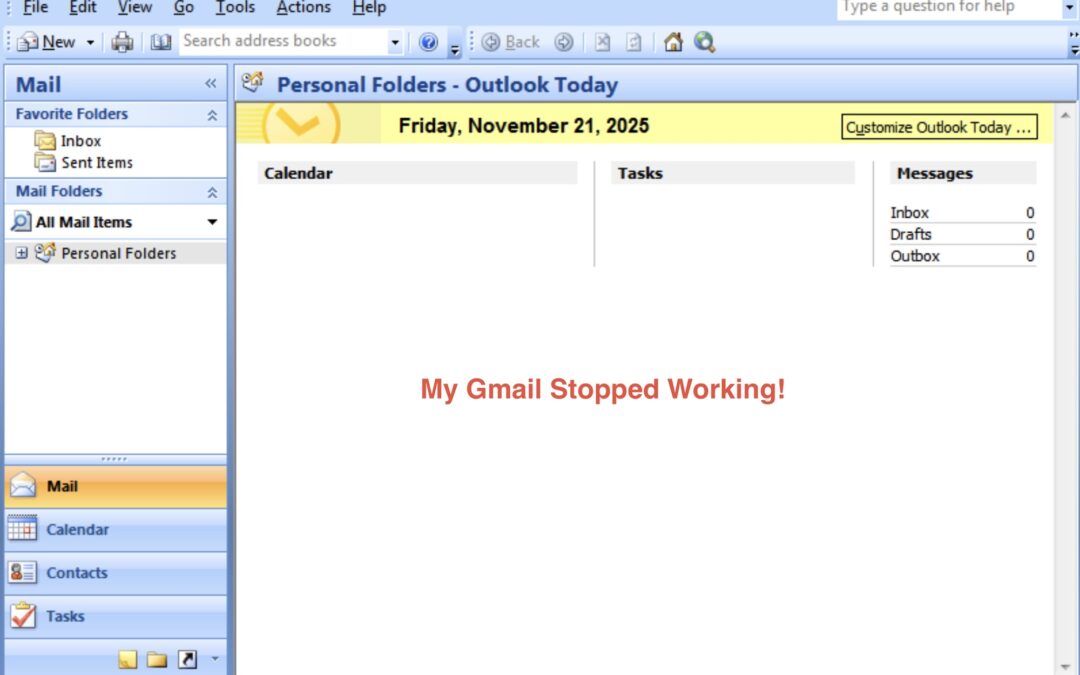
As I find it annoying to come across articles that claim to have answers/fixes for your IT issues or problems only to have the solution buried in various parts of the article, I’ve provided the quick, simple details for fixing this issue. So, if you find yourself in a scenario where you can’t get your Gmail account to work in different email service platforms, such as Outlook 2007 in this case or maybe have other issues with Google App Passwords, I hope this helps.
How To Use Gmail in Outlook 2007 (2025)
I. First, IMAP will not work with Outlook 2007. You will have to use POP3, but you won’t really have to worry about that given the solution I found.
II. You do have to ensure that POP3 is enabled - which it is by default. In your Gmail Settings, go to the Forwarding ____” tab at the top of the page. POP3 will be listed first. Just ensure the it is not disabled.
III. Must create a Google “App Password” to sign into your Gmail account in Outlook 2007.
1. To use Google “App Password” the following is required:
a. Your Google account cannot be the upgraded “Workplace” account. Also at the moment, it doesn’t look like you can downgrade from Workplace to the older “standard” Google/Gmail account.
b. You must enable 2-Factor Authentication for your Google Account.
2. Once you confirm the previous two items, the easiest way to setup an “App Password” is to:
a. Login to Manage your Google account.
b. Open settings
c. In the top of the page, you will see a search box specifically for “Searching Google Settings.”
d. In that search box, just type “app password” and don’t hit enter. Just wait for the dropdown suggestions to populate and then select “App Password.”
e. You will see a box on the page to enter a title for the App Password you want to create, hit enter.
f. Be sure to copy and note the App Password that is created for you. You won’t be able to see or edit again within your Google settings. You’ll just have to create a new one.
g. This password can only be used once. So in this case if you were trying to setup your Gmail in Outlook 2007 on another/different computer, you would need to create another App Password.
III. Return your computer with Outlook 2007 for which you are trying to use your Gmail account.
1. If you already had your Gmail account setup in your Outlook 2007, you must delete it completely.
a. To delete, go to the Tools tab in the top tool bar of Outlook 2007 and select Accounts.
b. A new window will open which should list all the accounts associated with your Outlook 2007. If more than one, find your previous Gmail account and click once to select/highlight it.
c. Above the box, you will see “Remove” as one of the available options. Select it to remove/delete anything related to the previous Gmail account.
2. Once successful, you can stay in that window and select “New” as one of the available options above the box.
a. Enter your Name (what you want to appear in Outlook 2007), your gmail address and then enter your newly created App Password twice in the spaces provided
- OPTIONAL for confirmation of POP3 settings: click on the “Manually Set Server Settings” button towards the bottom of that window/box. You will be taken to a new page, you just want to confirm that most everything is blank and that you see “POP3” in the _____ line. If IMAP is listed, then select “POP3” from the dropdown menu of that field. If it is greyed out and you can change it, then restart your Outlook to ensure all data from your previous Gmail account are purged and try again.
- You don’t need to enter any other information for POP3. This is just to confirm everything is in order. Select “Cancel” or “Back.”
b. Back in the initial account screen, press the “manually configure” to reset back to just entering your gmail account and App Password.
3. Finish, and it all should load.
III. Give it several minutes for everything to sync up and to see your gmail email inbox in the left column of accounts.
The Backstory and Details
Someone came to me with an issue and asked for my help. They wanted to continue to use Outlook 2007 on their Windows computer - for a few reasons one of which that they still liked the look and feel of the old layout. One day it all stopped working, and they were no longer able to send or receive emails through Outlook 2007. They had tried manually entering email configuration for POP3 and IMAP but with no success. Obviously, Microsoft no longer supports or provides security updates for Outlook 2007. As such, I did encourage them to upgrade to a newer, supported version of Outlook, but nonetheless, I promised to find a solution.
Of course, their situation and reasons were a little nuanced for which I decided to help. Here are the main reasons they wanted to keep the same setup. There are several solutions to different aspects of the reasons, but in the end, I helped get their current setup working again and left them with suggestions and options for dealing with future issues.
1. They liked the layout.
- Not much to be done about that. Personal preference, and I wasn’t able to find anything that closely resembled the Outlook 2007 layout while also satisfying the other reasons for his request.
2. They used Outlook Data File archiving (“.pst”) fairly heavily and extensively. Any fix or solution required these pst files to be readily available for daily use for their emailing.
- Obviously, they could continue to use the .pst files in more recent Outlooks - Outlook Classic and the Newest Version of Outlook (to a limited extent). However, there are other extenuating circumstances.
3. While they used the Outlook 2007 platform, they only used their Gmail account for emails in Outlook 2007. They would then move emails, contacts, and calendar events from their Gmail account/inbox into various Outlook Data Folders (.pst).
- This is where the main problems arise for upgrading to the newest version of Outlook. While the current Outlook (Classic View) version works fine with older .pst files and information, especially with respect to contacts and calendar events, the newest version of Modern Outlook only supports and integrates email messages within data files/.pst. Microsoft has indicated - for a while - that it is working to address this issue in the future so that all kinds of data saved in Outlook Data Files (.pst) would be available/integrated into the newest Outlook.
- Also for various personal reasons, they didn’t want to use their Microsoft Account in Outlook. The newer versions of Outlook which is now all rolled into Office 365 Online require that you sign in with a Microsoft account to utilize Outlook for anything. If this were the only issue, it wouldn’t be an issue. Even though you are logged into Outlook with your Microsoft account, you can add other email accounts and then make them the “default” receive and send email accounts. However, that still didn’t address current .pst integration into the Newest Modern Outlook nor his preference for the Outlook 2007 layout.
With all that, the first step was to figure out why they no longer could send or receive Gmail emails within their Outlook 2007. I started with the usual manual setup for POP3 and IMAP port and authentication settings. Long story short, I couldn’t get it to work either. While I use several different platforms, I have traditionally been more of an Apple person. As such, I remembered Apple’s utilization of “App Specific Passwords.” At the time, I wasn’t sure if Gmail/Google utilized a similar scenario, so I looked into it. Like Apple, Gmail is attempting to put the while “app-specific” passwords/authentication behind them. They both indicate that it is no longer a secure method for authentication. I thought this was interesting, at least in Apple’s case, because the process was created to ensure the security of your Apple account when using other platforms - namely less secure platforms that still kept your password in their system not just the cache and which were more susceptible to hacking. I think the more appropriate approach as to why they are trying to phase it out would be to be more transparent that they no longer want to use passwords in general, which is less secure these days. Also, I’m guessing they don’t want to keep dealing with people who have security breaches or other problems using less secure platforms in the first place. Obviously, the “app-specific” passwords process allows users to continue accessing their accounts in less secure platforms. I mean, why keep letting people use older, less secure services when we all know they are less secure - other than it is a “convenience” factor?
Back to the story. So, Gmail/Google does still utilize “App Passwords” which allow you to create a separate password specifically for one service/platform to access their accounts. Simple, right? Well, there are no free lunches in this world. There are of course some caveats which really aren’t that big of a deal - for the most part.
The first caveat is sensible. You have to enable and use 2-Factor Authentication for your Google/Gmail account. This adds extra/better security for the account overall regardless of how it is used. HOWEVER, the next caveat could actually stop everything in its tracks. Google has been pushing users to a little different platform - Workplace. I guess it is kind of their answer for all encompassing services like Microsoft’s Office365 Online and Apple’s iCloud. If you have upgraded to a Google Workplace account, then regardless if you have 2-Factor Authentication enabled (which I believe is required for Workplace), you will not be able to utilize “App Passwords” at all. At the moment, it doesn’t look like you can downgrade your Google account from Workplace. So, kind of screwed there. That is if you find yourself in this scenario but overall not a bad thing - security-wise.
Now down to the nitty gritty. For whatever reason (and I have my guesses) - with or without a Gmail App Password, IMAP just won’t work with Outlook 2007. I would have dug further into this, but luckily, Gmail POP3 settings with the App Password worked fine with Outlook 2007. Then, “luckily” enough, the person that approached me about this had not been upgraded to a Google Workplace account. I was able to get them setup and working again - after I had them enable 2-Factor Authentication for their Google account. So, crisis averted - for now.
Again, I laid on the whole mindful of security and software always becoming obsolete advice. I did provide them with all they needed to know if they wanted, or had to, upgrade from Outlook 2007 to the current Outlook (Classic Version). Hopefully, Microsoft will finish their “Roadmap” to all full integration and utilization of older .pst Outlook Data Files with Calendars and Contacts in the Modern, and future, Outlook.