

A little background
We all know that app ads on your iPhone are annoying. Well, for any mobile device that is, but I’m going to focus on the iPhone (but directions will basically be the same for iPads). Unfortunately, unless you pay the extra fees to remove them, they are not going anywhere. Really, who wants to pay $2.99 or so a MONTH for a game or app you may use only every now and then. If you like playing games on your phone, that quickly adds up.
To be honest, I hadn’t really given this much thought until recently. I more or less stayed away from games on my iPhone. Well, I did have one or two game apps - aka Solitaire, but that was it. In that case, I didn’t play them enough to be that bothered by the ads, or I went ahead and paid the extra fees to eliminate ads - if it was “reasonable.”
But I took notice as I saw my parents or other older folks having all kinds of issues with their iPhones. They had all kinds of apps they didn’t know they had, or they were getting billed for something they didn’t remember. I originally chalked it up to spam emails or website ads from whatever website they would visit on their phone. As I’ve gotten older myself, I wanted to keep my brain “trained.” Maybe I’ve bought into this whole “brain train” game wave, but I generally feel that some of them legitimately can help keep my brain a little sharper than if I wasn’t doing anything but reading emails or news stories.
So, I started trying out a lot of different games on my iPhone. I’m sure you can see where this is going. Yep! I was overwhelmed with ads. My first instinct as an IT Security professional was to just not touch anything and ride them out until the ad finished. Needless to say, I found myself waiting . . . and waiting . . . a long time.
There had to be a way to speed the process up - safely. I did start to notice all different kinds of icons popping up here and there in the corners of my display. There definitely was some “trial-and-error” with this process. As I started to figure out the formula for moving ads along, it finally dawned on me that this is why my parents and older colleagues were having issues with their phones. They definitely love playing games on their phones, but either the ads are done to trick them or they lose patience and start pressing things - or they try to be responsible but their dexterity to click on the right things have diminished.
So that is my motivation for this post and the video guides. I’ll take you through the things to look for and the steps to take to safely, and quickly, navigate pesky iPhone app ads.
First Disclaimer and/or Word of Caution
This will not be an exhaustive, complete guide on navigating all iPhone ads. Nor will I contend that I have the best and only way to proceed through these annoying things. Obviously ads make money off ill-timed or ill-placed taps on the screen during the ad. As a result, ads will always change their process/formula to keep you guessing. But, I think you will start to see the pattern like I did, and you will be able to adapt accordingly to figure out how to speed through the ads.
Second Disclaimer and/or Word of Caution
As with any ad, website pop-up or in game ad, BE CAREFUL WHAT YOU PRESS ON. The iPhone screen becomes a veritable minefield when it comes to ads. If you hit the wrong thing, then you could be taken down a rabbit hole and maybe even accidentally purchase or download something of which you had no intention. So, if your hands are a little shaky or your aim isn’t quite what it used to be, I would recommend using a comfortable stylist and placing your device on a stable surface when navigating through an ad.
Third Disclaimer and MOST IMPORTANT - or actually Public Service Announcement:
Commit this to memory, the Golden Rule of Cybersecurity and protecting yourself online. If you get any alert or email indicating that something is wrong with a service or your payment information, always confirm your information, subscriptions, and payment information on your own through a separate, and known, website or settings in your phone. Never, Ever, click on a link provided in an email or from the popup ad or “warning.” Get out and verify your account and settings through your normal means of managing that service - through a designated website or the actual management app for that service on your iPhone.
One other thing first
As we get back to the task at hand for this post, I do want to quickly address what I think some of you might bring up - the old “completely close out the app” strategy when the ad first pops up. To be sure, that can be an option - but not always. More importantly if you take pride in the levels of the game you’ve accomplished, this isn’t going to work either.
The quick process: When an ad pops up, then you can swipe your finger up from the bottom middle of the screen and drag to about halfway or closer to the top and release. This will show you a list of opened apps on your iPhone. You then select the app (game) in question, and then press and hold the app window and slide it up and off the top of your iPhone screen.
The app is completely closed. So when you go to open it again, it is like starting a brand new session. You’ll notice there will be no ads - most of the time. You can keep playing your game. However, any levels that weren’t saved, or the current level you had just finished before completely closing the app, will likely not be saved. So, you would just begin repeating the most recent level, and if you keep completely closing the app when the ad pops up, you won’t progress very far. So, this can work if that is not a concern for you and just want to keep doing the same thing over and over again. Who am I to judge (you little nut-job)? But really, it’s your choice.
Intro
I have about 4 different video guides below (at the end of the post) that walk you through the process relatively in realtime. I will briefly discuss a few scenarios and what to look out for, but be sure to watch the videos. Each has directions accompanying them.
Now to begin, I will first give you a quick rundown/list of things to look for.
The Basics
The most important thing to remember is don’t press/click on any objects, dialogue boxes, or otherwise flashing “click-bate” that would tempt a person to click.
ALWAYS first tap in an empty space at the top, middle of the screen. Across all apps, this is kind of a universal safe area - 99% of the time.
If the ad is going to let you proceed, you should see an icon or words display in the left or right corner. The designated corner always changes. You are hoping to find one of these generally accepted legit icons:
“Open Store,” “X”, “>|” (like a Forward button), “>>|” (like a Fast Forward Button), or “>” (again like a Play button).
“Generally Approved Icons”
More often than not, the first icon you will see will be like “Open Store” with or without the “>|”. Accurately press/select these words/icon.
Generally, you will be taken to another page of the ad. If the ad plans on being “quick and painless,” then you will now see an App Store page pop up for the app being advertised. Along with it will be an “X” in the top left corner which you can accurately press on to proceed.
If the ad is not going to go “quietly into that good night,” you will see a new ad or other animation. From this point on, you have to be patient and wait for other icons to appear in one of the corners of the display. At this point, you are either one step away from ending the annoyance, or just beginning. Either way, now you will wait to see either an “X” or other “approved” icons. The ad generally likes to keep this option subtle, so it can be a little slow to show up, or it could be a little hidden by wording on the screen. When it shows, accurately - and I do mean ACCURATELY - click on/select that “X” or other mentioned icons.
Generally, if at this point you see the “X” then the ad will be over, but if you see any of the other mentioned icons, you just keep going to a new ad page and wait for the next “generally approved” icons to appear. Keep selecting the generally “approved” icon as mentioned and eventually the ad will come to an end, and you can return to your app as normal.
Please see the videos further below for different examples of this process.
A Cheeky Ad
BUT FIRST, I do want to point out a really “cheeky” ad I came across. This will also be a part of my Public Service Announcement because an “in-app ad” is not the only place you could see something like this. This will be true for any unexpected/unknown popup or email that you see that indicates “something is wrong” and you need to “go here,” “download this,” or “call us at this number to fix.” If you come across anything like this, remember the major golden rule for cybersecurity, always confirm your information, subscriptions, and payment information on your own through a separate, and known, website or settings in your phone. Never, Ever, click on a link in an email or from the popup ad or “warning.” Get out and verify your account and settings through your normal means of managing that service.
So, back to the “cheeky ad” which is trying to trick you. It claims there is something wrong with the app you are using. It indicates something like “the version of your app is outdated and must be updated - ‘ok.’” News Flash, don’t click on the “ok” to proceed. It is an ad. If you click on it as it says, it will just download a completely different app than the one you are actually using or something worse.
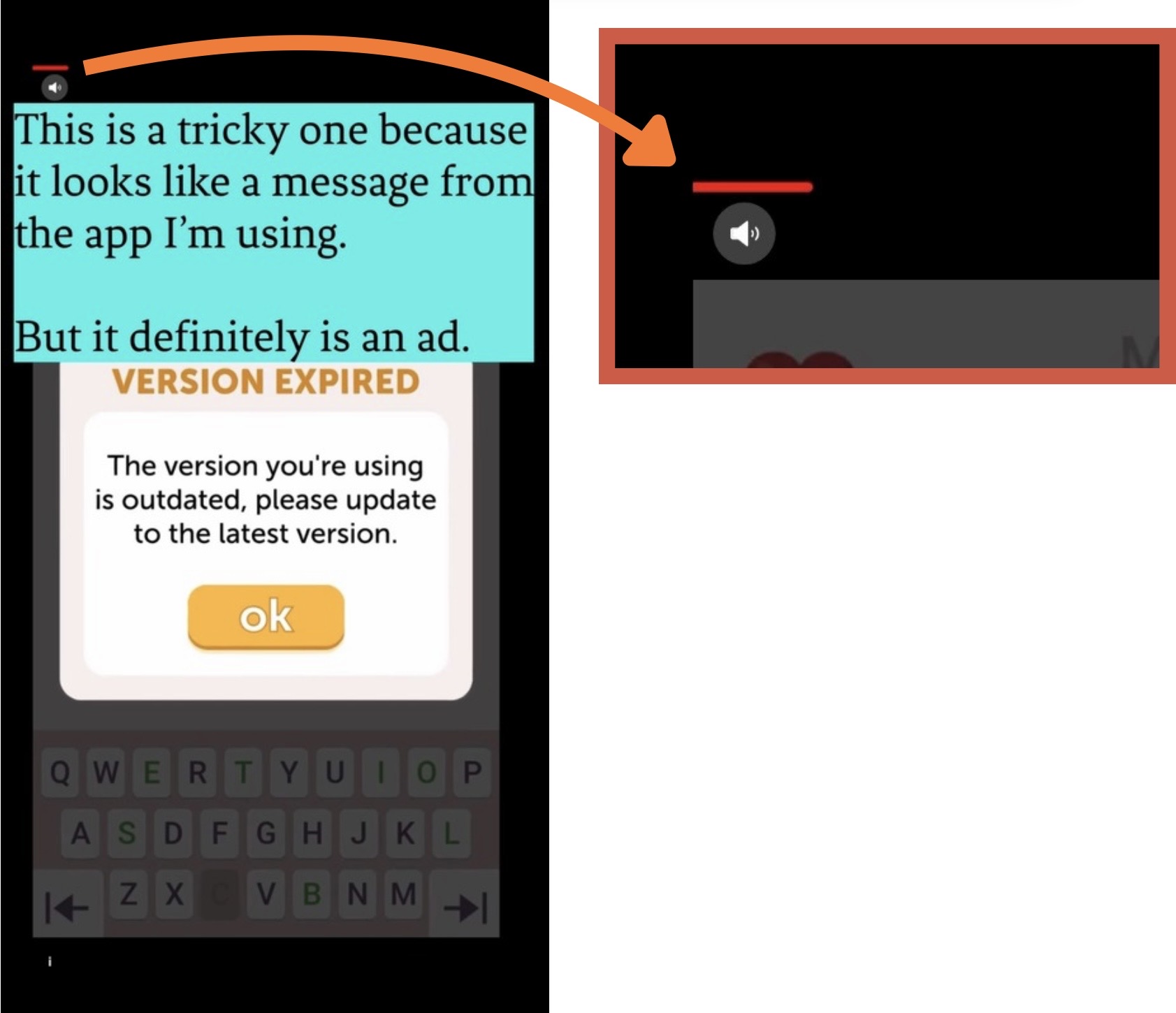
One “quick” way to determine if it is an ad and not a “helpful suggestion to click on something and regret it.” In this case, the top of the screen shows what looks like a “progress bar.” Basically, a red line that starts to gingerly thicken from one side of the screen to the other like you often see when watching a video. So that means the ad is a video that you are watching and not a notice from the app itself. Once the thick red line hits the right side of the screen, it means it is done.
Important to note (99% of the time) If an app wanted to give you an important notice, warning, or information, it would just pop up. There would not be a progress bar associated with it.
It is still an ad, so you can attempt to take some of the normal steps to “move things along” as you would with other ads, but just be careful. DO NOT click on the “Click Here” button or any other part of the ad.
Do This:
Click on an empty space in the top middle of the screen.
-
-
-
Wait for a new icon to appear in one of the corners. If it leads to another icon, continue.
-
If it pops up something else or switches automatically to an App Storage page for the ad, then don’t touch anything else and just wait (although, close the App Store page if it does show up).
-
Once the video ends, then you will be presented with the other usual options of icons to proceed to get back to your game or intended app - as discussed earlier.
-
-
Sometimes, You Just Gotta Wait
With that said, there will be ads that you just have to sit and wait for it to run its course. Again, even if a progress bar appears at the top or bottom of the ad window, you can press in an empty area in the top, middle part of your iPhone display to test it. Either nothing will happen or it will quickly open the App Store page for that app. Just close the App Store popup using the “X” icon, and wait.
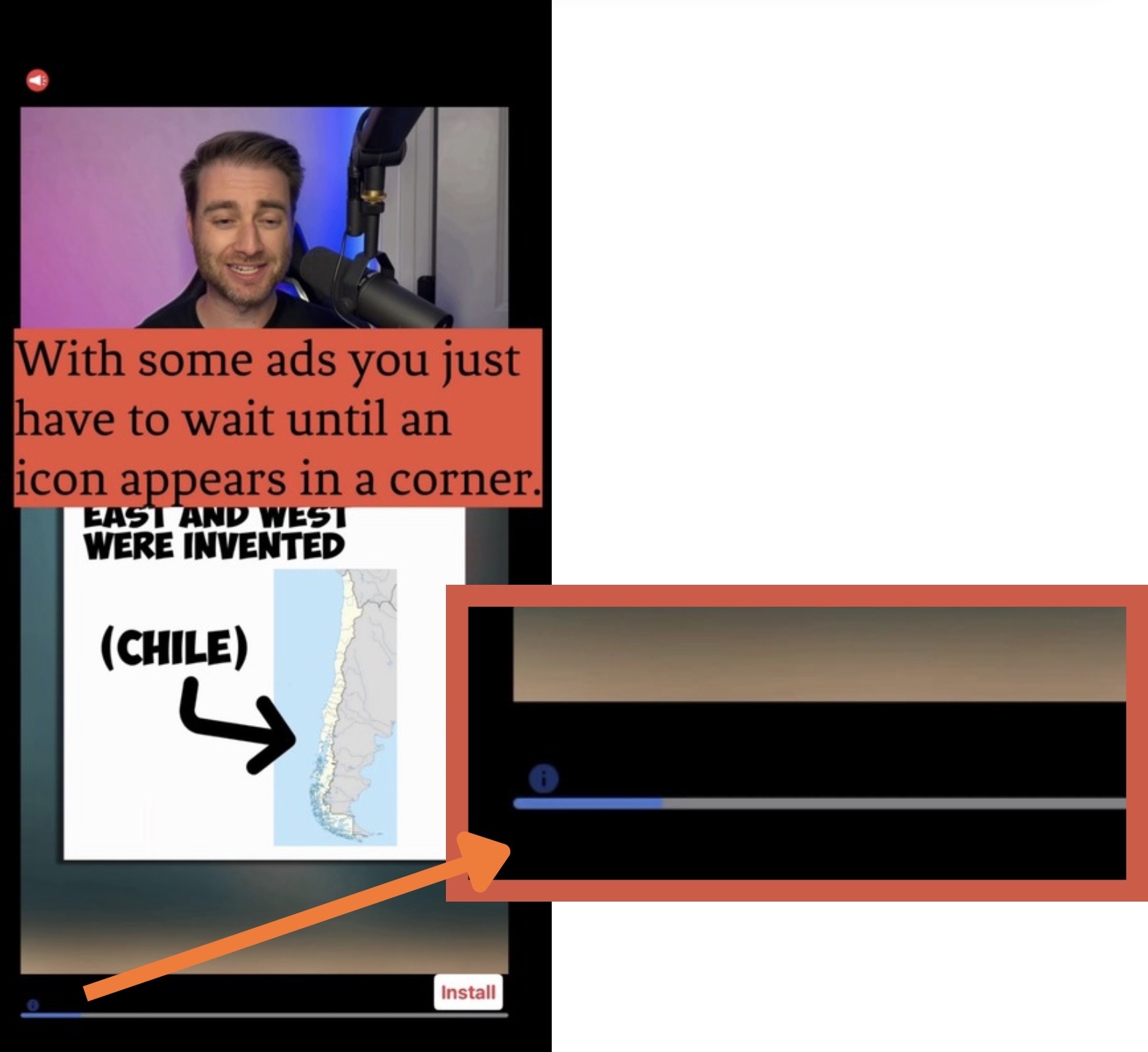
There are other clues that will let you know if you just have to wait. In this ad, a progress bar shows at the bottom of the screen. This location does usually mean you will have to wait until the ad has run its course. Sometimes there will be countdown clocks that appear in one of the corners. If this is the case, don’t waste time testing and touching in the empty space in the top of the window, just wait until it counts down to zero. Then you will be presented with one of the previously mentioned icons. Accurately click-on/select the appropriate icon and proceed. Sometimes you will have to go through several steps, but each time, just wait for the “generally accepted icons” I’ve mentioned to show up, click, and proceed until it is done.
Conclusion
I know this isn’t much of a real “Public Service Announcement,” but I hope that some of you find it helpful. Again, be aware that the ads will change, but keeping these things in mind and looking for the “approved” icons I mention, you will be able to speed up the process - as long as you make accurate and careful selections/clicks.